




Forgetting your EPFO (Employees’ Provident Fund Organisation) login password is one of the most common digital inconveniences faced by EPF members, employers, and pensioners across India. Whether you are accessing the EPFO Unified Member Portal to check your PF balance, download your passbook, or raise a claim, a forgotten password can halt the entire process. The good news is that EPFO has built a straightforward self-service password reset mechanism that allows any registered user to recover access within minutes — without visiting an EPFO office, calling a helpline, or raising a grievance ticket.
This complete guide walks you through every method available to reset or change your EPFO login password in 2026.
What Is EPFO Login?
The EPFO Unified Member Portal (unifiedportal-mem.epfindia.gov.in) is the online platform where EPF members can:
- Check PF balance and passbook
- Submit online claims (PF withdrawal, advance, pension)
- Update KYC (Aadhaar, PAN, bank account)
- Track claim status
- Download UAN card and ECR challan (employers)
Your login credentials are your UAN (Universal Account Number) and a self-created password.
Why EPFO Passwords Get Forgotten
| Reason | Description |
| Infrequent Use | EPF portal accessed only during job change or withdrawal — password forgotten over time |
| Multiple Passwords | Users maintain many passwords across portals and confuse them |
| Auto-Generated Initial Password | First-time users forget the OTP-based initial password set at activation |
| Device Change | Password not saved on new device or browser |
| Incorrect Entries | Account temporarily locked after repeated wrong attempts |
| UAN Not Activated | Some users confuse inactive UAN with forgotten password |
Step-by-Step: How to Reset EPFO Login Password
Method 1 — Reset via OTP on Registered Mobile Number (Most Common)
- Visit the EPFO Unified Member Portal: unifiedportal-mem.epfindia.gov.in
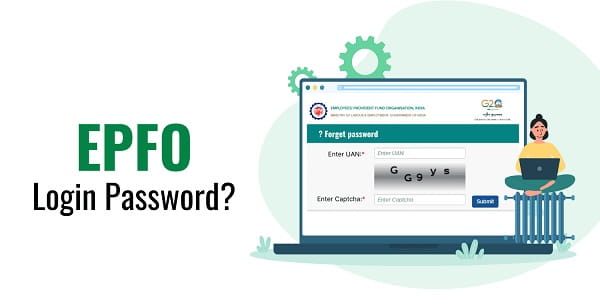
- Click on “Forgot Password” below the login box
- Enter your UAN (Universal Account Number)
- Enter the Captcha displayed on screen
- Click “Get OTP” — a One-Time Password is sent to your Aadhaar-linked or UAN-registered mobile number
- Enter the OTP received on your mobile
- You will be redirected to the “Set New Password” page
- Enter a new password and confirm it
- Click “Submit” — your password is reset instantly
Note: Your new password must be at least 8 characters long and must include one uppercase letter, one lowercase letter, one number, and one special character.
Method 2 — Reset via Aadhaar OTP
If your mobile number linked to UAN is no longer active, you can reset your password using Aadhaar-based OTP:
- Click “Forgot Password” on the login page
- Enter UAN and Captcha
- Select “Aadhaar OTP” option
- Enter your Aadhaar number
- OTP is sent to your Aadhaar-registered mobile number via UIDAI
- Enter the OTP and set a new password
Method 3 — Change Password After Login (For Users Who Know Current Password)
- Log in to the EPFO Member Portal with existing credentials
- Click on your profile icon or navigate to “Manage”
- Select “Change Password”
- Enter your current password, then your new password twice
- Click “Submit”
EPFO Password Reset — Quick Reference Table
| Scenario | Method | Requirement | Time Taken |
| Forgot password — mobile active | OTP on registered mobile | UAN + registered mobile | 2 — 3 minutes |
| Forgot password — mobile inactive | Aadhaar OTP | UAN + Aadhaar-linked mobile | 2 — 3 minutes |
| Know current password — want to change | Change Password from dashboard | Login access required | 1 — 2 minutes |
| UAN not activated | First-time activation | Aadhaar / PAN / OTP | 3 — 5 minutes |
| Account locked | Wait 24 hours or contact employer | Registered mobile | 24 hours |
Password Rules for EPFO Portal
| Rule | Requirement |
| Minimum Length | 8 characters |
| Uppercase Letter | At least 1 required |
| Lowercase Letter | At least 1 required |
| Number | At least 1 required |
| Special Character | At least 1 required (e.g. @, #, $, !) |
| Cannot Reuse | Last 3 passwords cannot be reused |
Frequently Asked Questions (FAQs)
Q1. What is UAN and where do I find it?
A: UAN (Universal Account Number) is a 12-digit number assigned to every EPF member. You can find it on your salary slip, your employer’s HR portal, or via the EPFO SMS service by giving a missed call to 011-22901406.
Q2. What if my registered mobile number is not active?
A: Use the Aadhaar OTP option on the Forgot Password page. Make sure your Aadhaar-linked mobile number is active.
Q3. How many times can I attempt password reset in a day?
A: EPFO allows limited attempts. If your account is temporarily locked after repeated failures, wait 24 hours before trying again.
Q4. Can I reset my EPFO password without OTP?
A: No. OTP verification — either on your registered mobile or Aadhaar-linked mobile — is mandatory for security.
Q5. What should I do if I don’t receive the OTP?
A: Check that your registered mobile number is correct on the EPFO portal. If the number is outdated, contact your current or previous employer to update it via the employer portal.
Q6. Can I reset the EPFO password from the UMANG app?
A: Yes. The UMANG app supports EPFO login and you can request an OTP-based password reset from within the app.